> For the complete documentation index, see [llms.txt](https://docs.greennode.ai/llms.txt). Markdown versions of documentation pages are available by appending `.md` to page URLs; this page is available as [Markdown](https://docs.greennode.ai/vstorage/object-storage/object-storage-hcm04/cac-tinh-nang-cua-object-storage/lam-viec-voi-bucket/working-with-buckets-via-vstorage-portal/bucket-acls.md).

# Bucket ACLs

## **Overview** <a href="#tng-qmz-quan" id="tng-qmz-quan"></a>

**Access Control List (ACL)** on vStorage is a feature that allows you to manage access to buckets and objects within buckets. ACLs provide basic access levels that you can set for other Root user accounts on vStorage. Here is a basic guide to using ACLs:

1. Log in to [https://vstorage.console.greennode.ai](https://vstorage.console.greennode.ai/storage/list).
2. Select the icon ![](https://docs.vngcloud.vn/~gitbook/image?url=https%3A%2F%2F3672463924-files.gitbook.io%2F%7E%2Ffiles%2Fv0%2Fb%2Fgitbook-x-prod.appspot.com%2Fo%2Fspaces%252FB0NrrrdJdpYOYzRkbWp5%252Fuploads%252F2Ye0SwJ9LL3dubdbJhKn%252Fimage.png%3Falt%3Dmedia%26token%3Dcee711e0-ec36-4c9d-ab5f-c8537e348626\&width=33\&dpr=4\&quality=100\&sign=d8575ee1\&sv=2)in **the project** containing **the bucket** you want to grant permissions to.
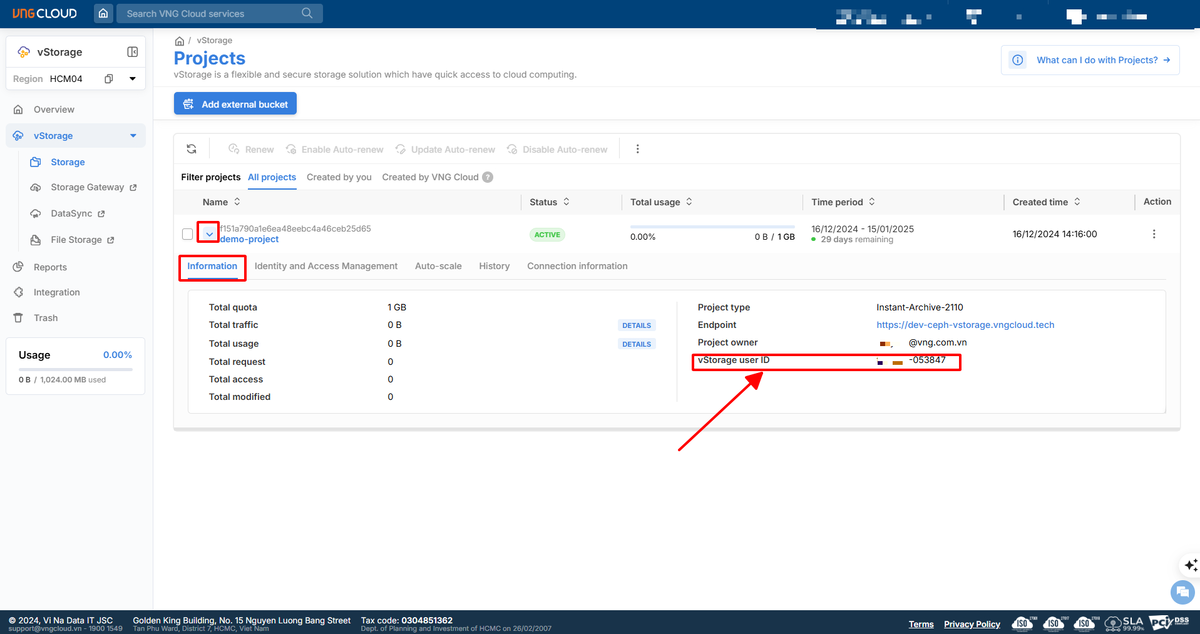
3. If you want to delegate bucket permissions to a **Root User Account** or another **IAM User Account** or **Service Account** , you need to know the **vStorage User ID** of the user you want to delegate permissions to:
   1. For **Root User Account : you can get vStorage User ID** information right on the **project** information page as shown below.

<figure><img src="/files/IbZM0ZP2xCqXJiK8M769" alt=""><figcaption></figcaption></figure>

b. For **IAM User Account** and **Service Account : you can get vStorage User ID** information in **Identity and Access Management**

<figure><img src="/files/Tfx1OtkTz9IXR7LZxxTj" alt=""><figcaption></figcaption></figure>

4. Continue to select **the Bucket** you want to perform ACLs setup.
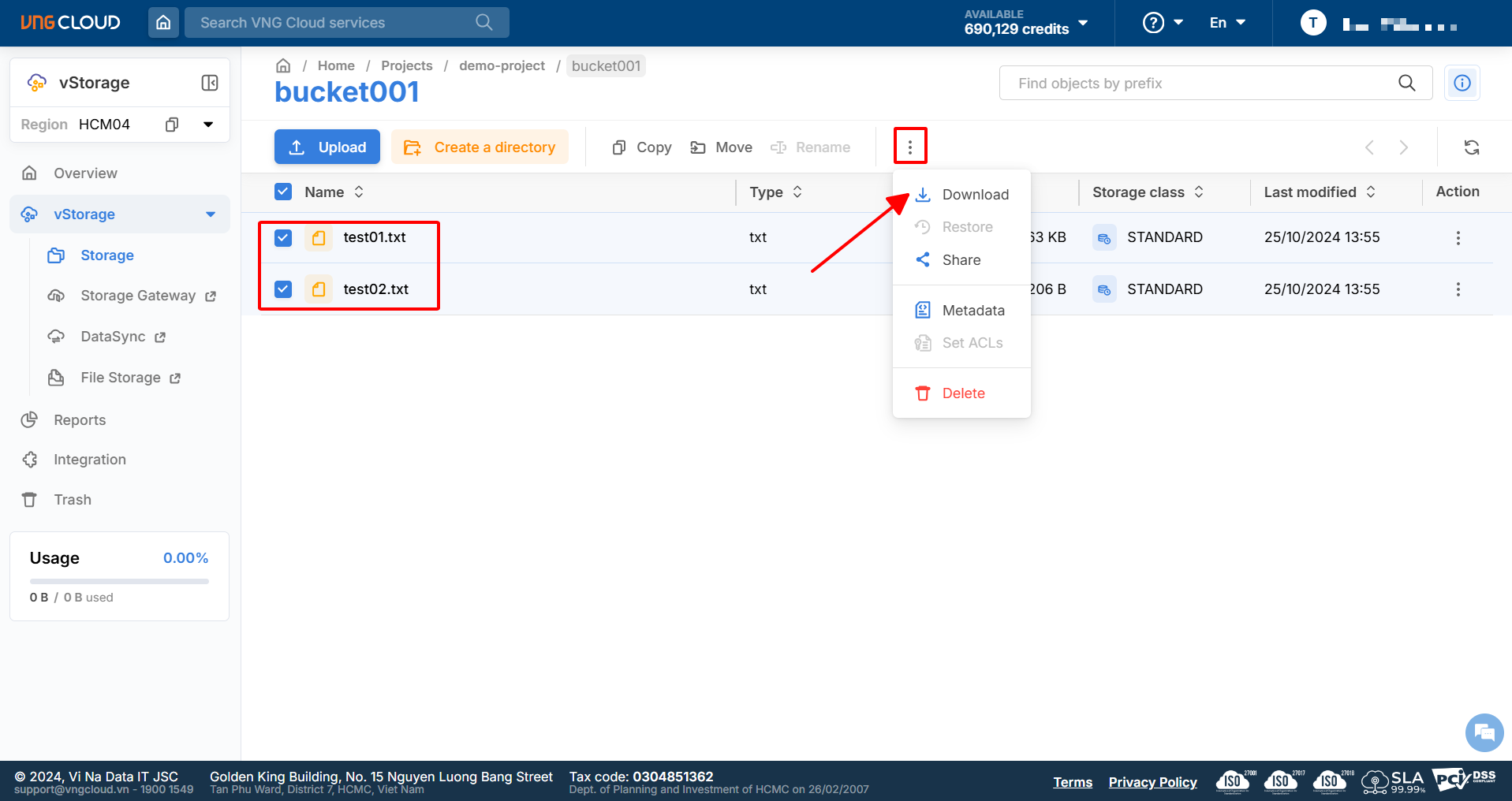
5. Select the **Action** icon and select **Set ACLs.**

<figure><img src="/files/Uk89edJAIhjFwqx6bZDY" alt=""><figcaption></figcaption></figure>

6\. Here, you can select user sets and corresponding access rights. Specifically:

* **User sets in ACL:** ACL allows setting access rights for the following types of users:
  * **Bucket owner**: The owner of the bucket.
  * <mark style="color:red;">**Everyone (Public Access)**</mark><mark style="color:red;">: All users, any user can access the resource without being authenticated.</mark>
  * **Authenticated users:** All users on the vStorage HCM04 system.
  * **Other accounts**: Only users with specific vStorage User IDs are allowed to access the resources. You can view vStorage User ID information by following the instructions here.
* Permissions that can be granted:

<table><thead><tr><th width="174">Action</th><th>Bucket ACLs</th><th>Object ACLs</th></tr></thead><tbody><tr><td><code>READ</code></td><td><ul><li><code>ListObjects</code>: User can view list of all objects belonging to bucket.</li></ul></td><td><ul><li><code>ReadObject</code>: Users can view detailed information about an object (object's data and object's metadata)</li></ul></td></tr><tr><td><code>WRITE</code></td><td><ul><li><code>WriteObjects</code>: Users can upload objects to the bucket.</li></ul></td><td><ul><li>Not supported</li></ul></td></tr><tr><td><code>READ + WRITE</code></td><td><ul><li><code>ListObjects</code> + <code>WriteObjects</code>: Users can view the list of objects in the bucket and upload objects to this bucket.</li></ul></td><td><ul><li><code>ReadObject</code>: Users can view detailed information about an object (object's data and object's metadata)</li></ul></td></tr></tbody></table>

* **In addition, the ReadBucketACL, WriteBucketACL, ReadObjectACL, WriteObjectACL permissions:** Allow users to view information/update the ACLs configuration of the bucket or object.

<figure><img src="/files/4KlGySXTKHe1Ld2ql2Dm" alt=""><figcaption></figcaption></figure>

7\. Select **Update** to save the configuration set for ACLs.

***

## Example <a href="#v-jga-d-xym-minh-ha-68s" id="v-jga-d-xym-minh-ha-68s"></a>

### **Example 1: Grant ListObject permission to everyone (Public-Read)** <a href="#v-jga-d-xym-1-cp-r5s-quyn-sv5a-listobject-cho-tt-r5s-c-5um-mi-68s-ngi-28a9548a-public-read" id="v-jga-d-xym-1-cp-r5s-quyn-sv5a-listobject-cho-tt-r5s-c-5um-mi-68s-ngi-28a9548a-public-read"></a>

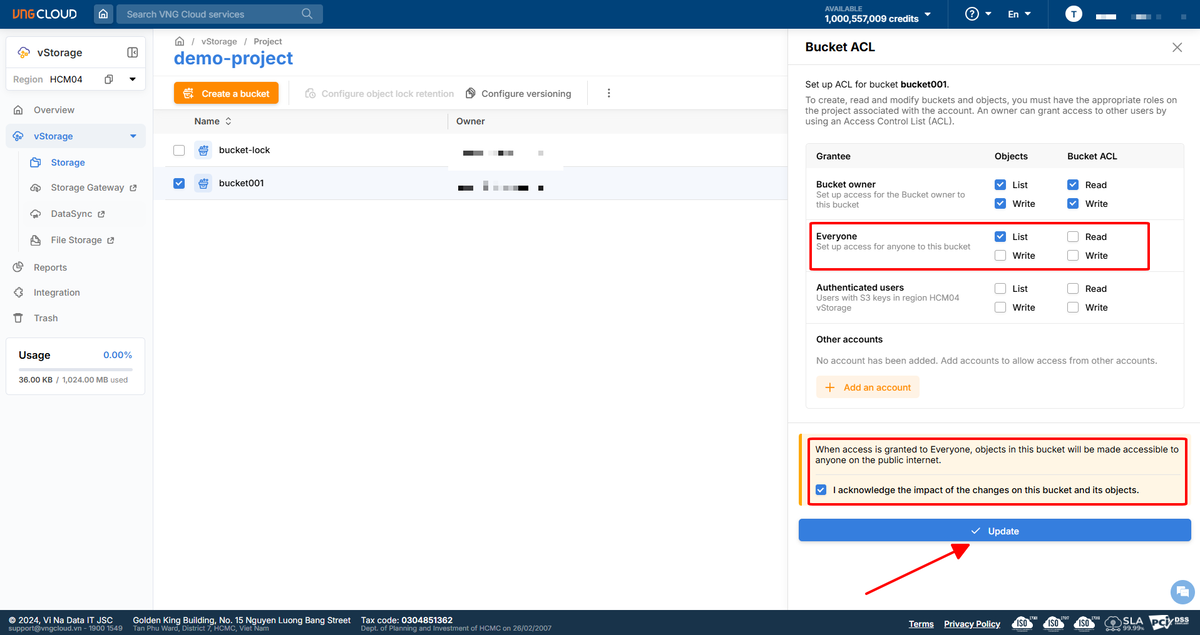
* Select **Everyone (public access)** in the **Access control list** section .
* Select **the List** action to grant permission to list objects in the bucket to all users.
* Select **Save** .

<figure><img src="/files/UnJ75lkqq8BjYada3cEZ" alt=""><figcaption></figcaption></figure>

### **Example 2: Grant FULL\_CONTROL permission to another vStorage account** <a href="#v-jga-d-xym-2-cp-r5s-quyn-sv5a-full_control-cho-mt-79s-ti-jia-khon-ir5a-vstorage-khc-fla" id="v-jga-d-xym-2-cp-r5s-quyn-sv5a-full_control-cho-mt-79s-ti-jia-khon-ir5a-vstorage-khc-fla"></a>

{% hint style="info" %}
Attention:

* To grant access to resources to another vStorage account, you need to know the vStorage User ID of the user you want to share access to. You can view the vStorage User ID information by following the instructions here.
  {% endhint %}

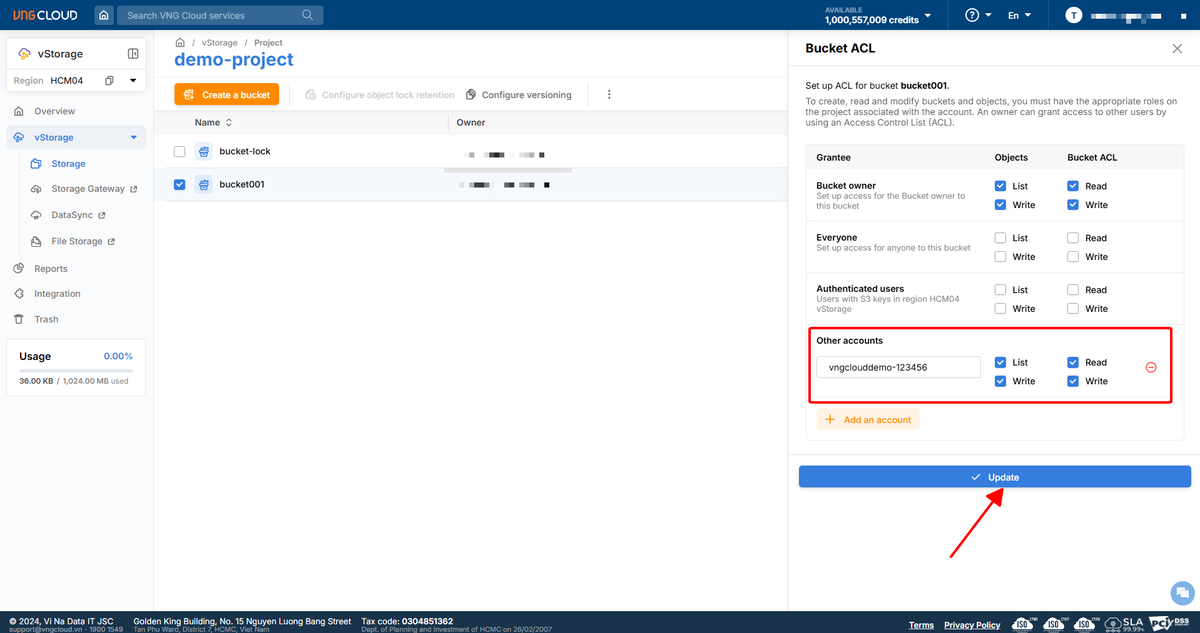
* In **Other accounts** , enter **the vStorage User ID** of the account to which you want to grant permissions.

* Select **the List, Write** action to grant permission to list objects in the bucket and upload objects to this bucket.

* Select **Save**.

<figure><img src="/files/tHArAspPm8XWsSicW8Xh" alt=""><figcaption></figcaption></figure>

* As shown above, I have assigned the above working permission `bucket001` to the user `vngclouddemo-123456`. Now, the user `vngclouddemo-123456`can use the feature `Add external bucket`to add this shared bucket to your bucket list:

<figure><img src="/files/pQTTw0mlKRLbkl1IWk9u" alt=""><figcaption></figcaption></figure>

{% hint style="info" %}
**Attention:**

* **Public Access Control (Everyone)** : Use public access only when necessary, as ACLs can lead to unwanted data disclosure. If you want to manage access in a granular manner, use **Bucket Policy** instead of public **ACLs** . Using Bucket Policy allows you to specify more granular access conditions, such as **IP restrictions** , **authentication requirements** , or specific security conditions.
* **Combined with Bucket Policy** : ACL can be used in parallel with Bucket Policy, but care must be taken to avoid conflicts in permissions. For example: If ACL allows people to ListObjects in a bucket, but Bucket Policy denies access from public sources, then users will not be able to access public objects.
* **Limitations of ACL** : ACL does not support complex conditions like Bucket Policy, so it is only suitable for simple authorization scenarios. When you need more complex control, consider combining it with Bucket Policy.
  {% endhint %}