> For the complete documentation index, see [llms.txt](https://docs.greennode.ai/llms.txt). Markdown versions of documentation pages are available by appending `.md` to page URLs; this page is available as [Markdown](https://docs.greennode.ai/vstorage/object-storage/object-storage-hcm04/3rd-party-softwares/cyberduck/integrate-cyberduck-with-vstorage.md).
# Integrate Cyberduck with vStorage
To see instructions for integrating Cyberduck with vStorage, you can do so via the vStorage Portal by following the instructions below:
1. Log in to [https://vstorage.console.greennode.ai](https://vstorage.console.greennode.ai/storage/list) .
2. Select the Integration folder **.**
3. **Select the Cyberduck** icon .
4. In the **Authentication** section , you need to fill in the necessary information to configure your Cyberduck to integrate with vStorage including:
1. Select a **Project** from the list of existing projects in the Region you selected earlier. If the list of projects displayed is incomplete, you can select , we will reload the latest list of projects at the time you perform this action.
2. Select an **Access key** from the list of existing access keys in the project you selected earlier.
3. Enter the corresponding **Secret key** of the selected **Access key . The access key and secret key pair are created and managed by you through the vIAM system. You can select** [Click here to visit vIAM and manage S3 keys](https://iam.console.greennode.ai/vstorage-credentials/s3) so that we can direct you to the vIAM system and the S3 keys management screens in detail. For more information about S3 keys, see [Initialize vStorage Credentials](https://docs-vngcloud-vn.translate.goog/vng-cloud-document/vn/vstorage/object-storage/vstorage-hcm03/quan-ly-truy-cap/quan-ly-tai-khoan-truy-cap-vstorage/tai-khoan-service-account/khoi-tao-vstorage-credentials) .
5. **After you have finished selecting the Authentication** configuration , select **Integrate cyberduck to go to the Configuration** screen . You can always come back here to change your **Authorization information, then select Integrate cyberduck** again to update the usage according to your new parameters. You can see instructions on how to install and configure Cyberduck right on this screen. For more details, see: [Integrate vStorage.](https://vstorage.console.greennode.ai/integration/integration)
6. Select **Download configuration file.**
***
**Continue following the steps below to complete the S3cmd integration with vStorage:**
1. **Download the Cyberduck** user tool here .
2. **Open the Cyberduck** app .
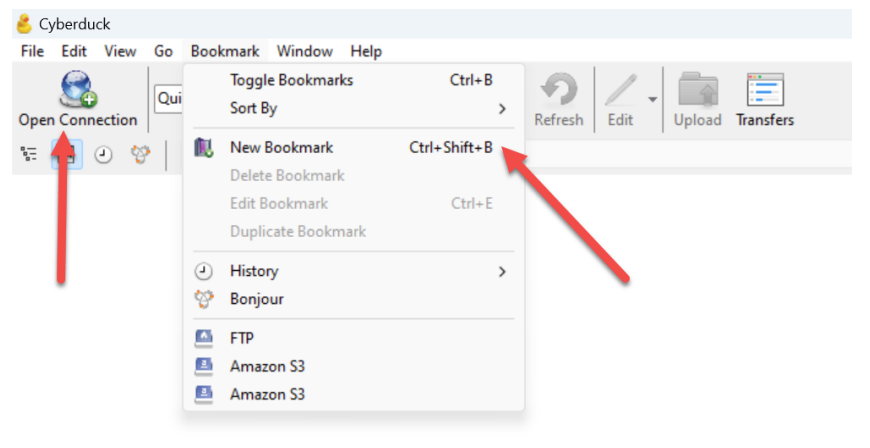
3. Select **Open Connection** or **Bookmark + New Bookmark** .
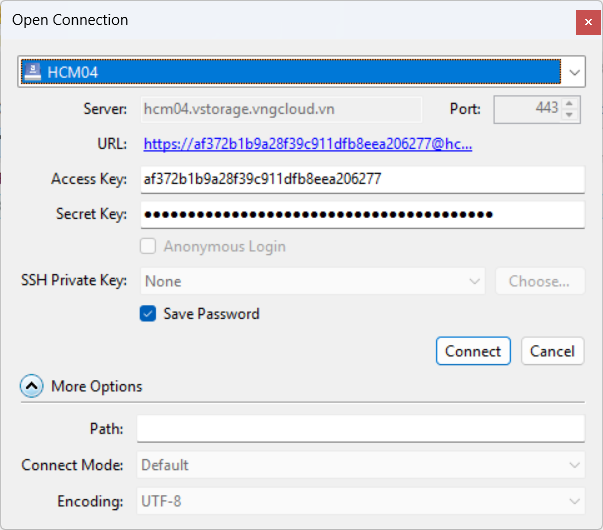
4\. Enter connection information including:
* **Protocol** : HCM04. When you choose this method, Server, Port, URL information will be automatically recorded and displayed.
* **Access key** : enter the S3 access key you created from vStorage, which is also the access key information taken from step 4 above.
* **Secret key** : enter the S3 access key you created from vStorage, which is also the access key information taken from step 4 above.
5\. Select **Connect** .
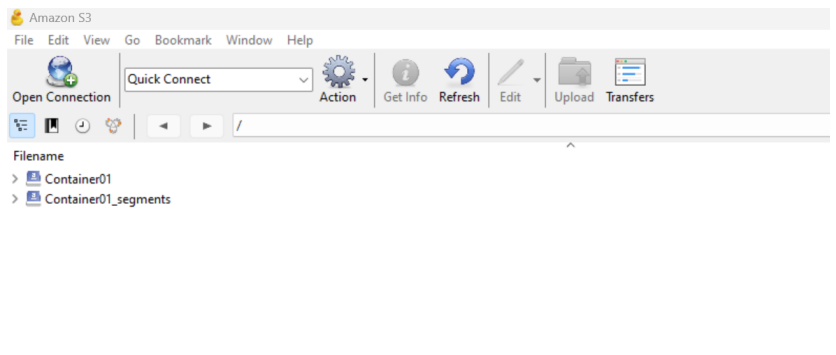
6\. Now **Cyberduck** has successfully connected to **vStorage** . You can use Cyberduck to access vStorage, see Using Cyberduck tool for more information.