> For the complete documentation index, see [llms.txt](https://docs.greennode.ai/llms.txt). Markdown versions of documentation pages are available by appending `.md` to page URLs; this page is available as [Markdown](https://docs.greennode.ai/vstorage/object-storage/object-storage-han02/getting-started-with-object-storage/step-4-create-a-s3-key.md).
# Step 4: Create a S3 Key
To initialize an S3 key, follow the instructions below:
1. Log in to [https://vstorage.console.greennode.ai](https://vstorage.console.greennode.ai/storage/list).
2. Select **Region HAN02.**
3. Select the icon in the project you just created and then select the **Identity and Access Management** tab**.**
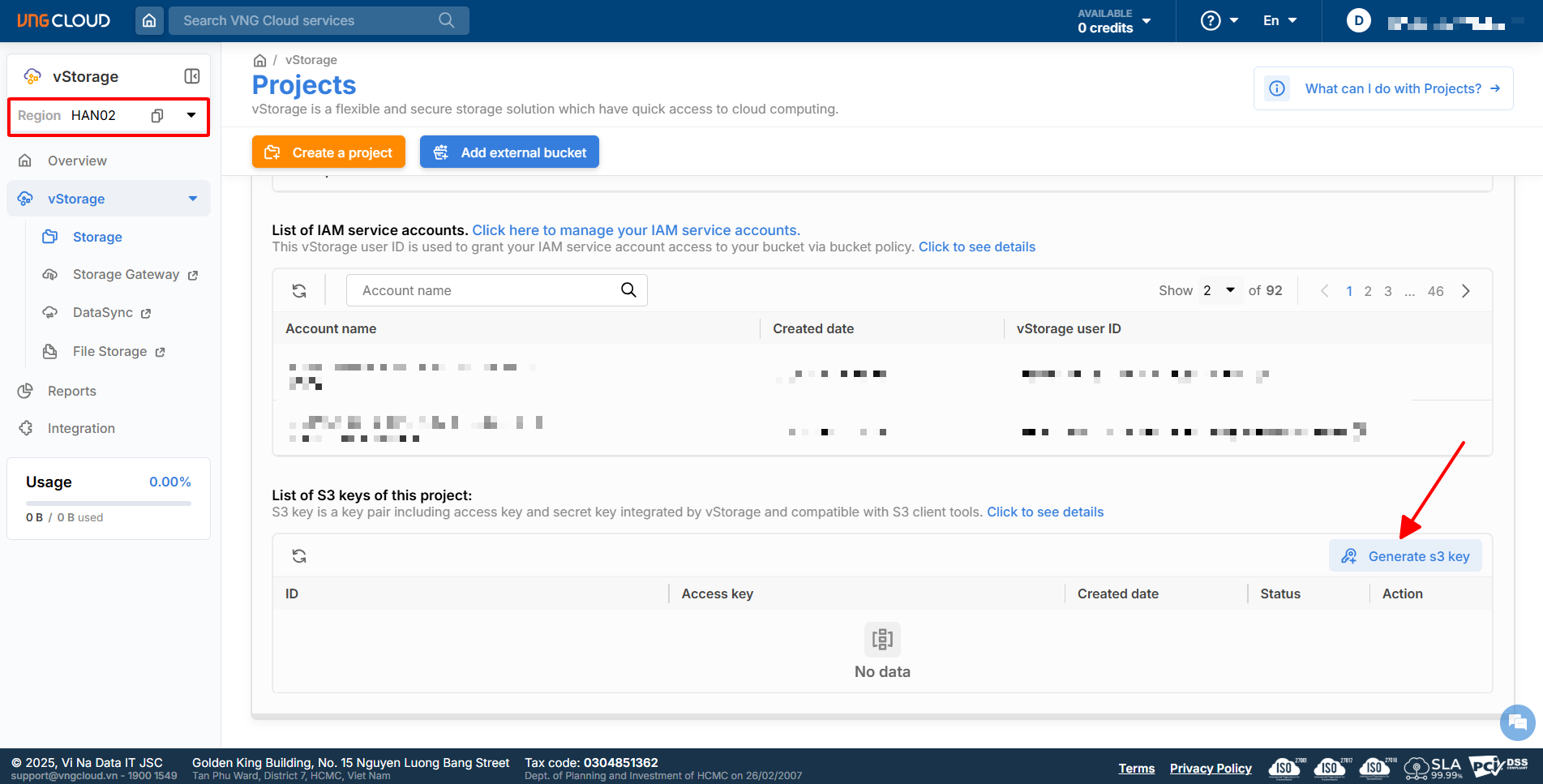
4. In the **List of S3 keys of this project** section, select **Generate S3 key**.
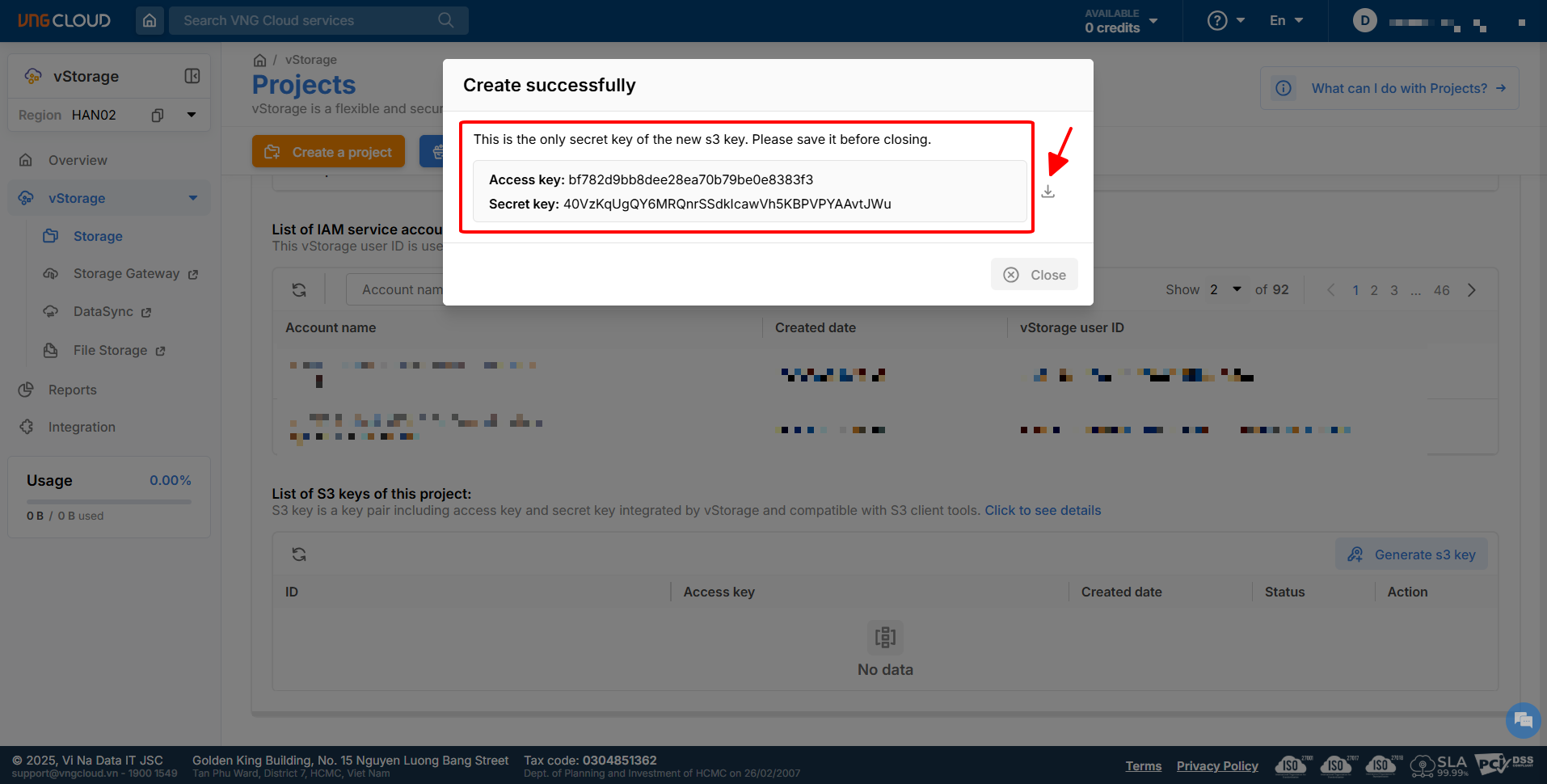
5. Select **Copy** or **Download** to download the Access Key/Secret Key information you just generated.
{% hint style="info" %}
**Attention:**
* After clicking create S3 key, you need to **save the Access Key/Secret Key pair** for use. If you do not save it now, you will not be able to get the Secret Key of this Access Key later.
{% endhint %}
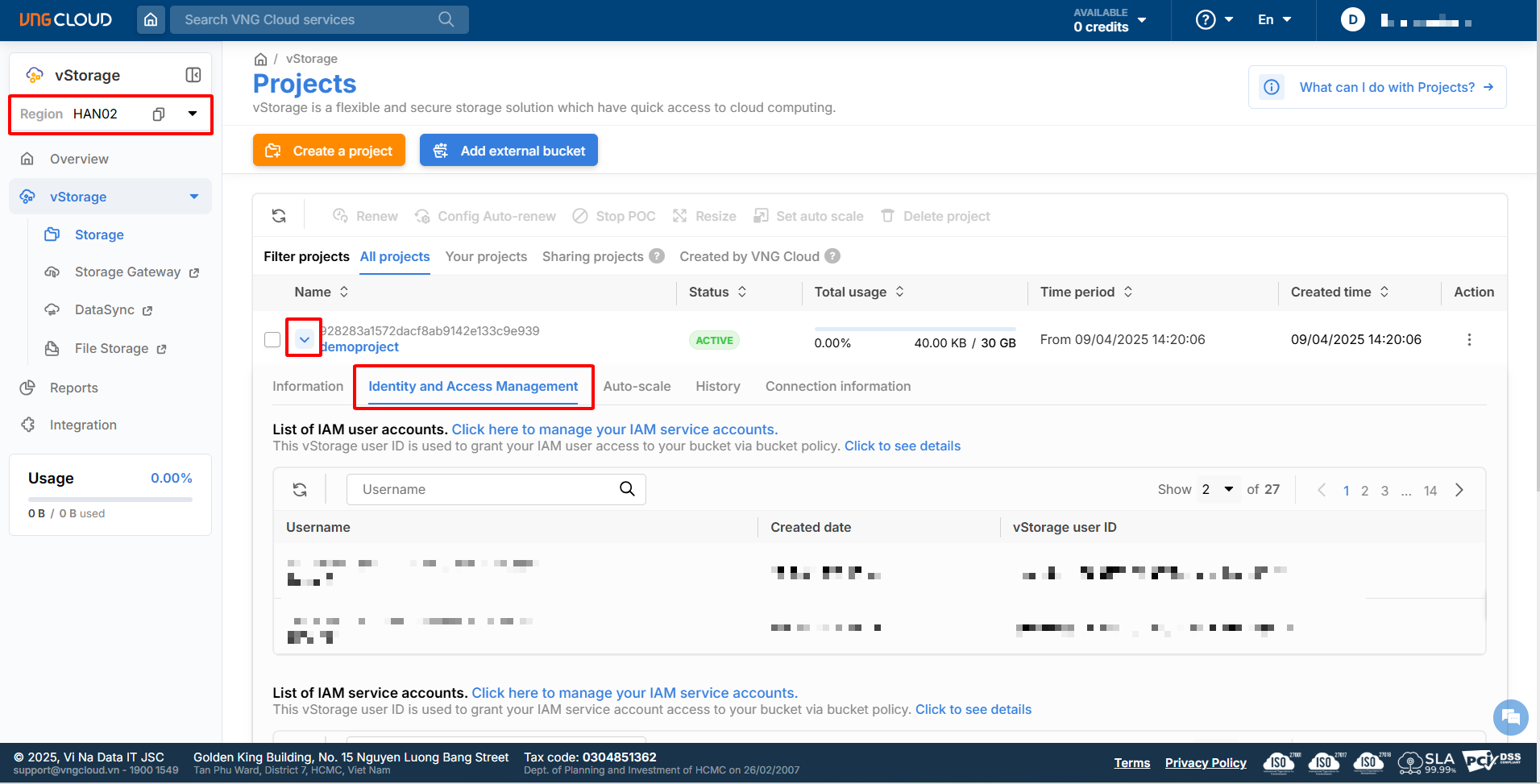
 in the project you just created and then select the **Identity and Access Management** tab**.**
4. In the **List of S3 keys of this project** section, select **Generate S3 key**.
5. Select **Copy** or **Download** to download the Access Key/Secret Key information you just generated.
in the project you just created and then select the **Identity and Access Management** tab**.**
4. In the **List of S3 keys of this project** section, select **Generate S3 key**.
5. Select **Copy** or **Download** to download the Access Key/Secret Key information you just generated.