> For the complete documentation index, see [llms.txt](https://docs.greennode.ai/llms.txt). Markdown versions of documentation pages are available by appending `.md` to page URLs; this page is available as [Markdown](https://docs.greennode.ai/vnetwork/cross-connect/create-cross-connect.md).
# Create Cross Connect
**Follow these steps to create a Cross Connect connection:**
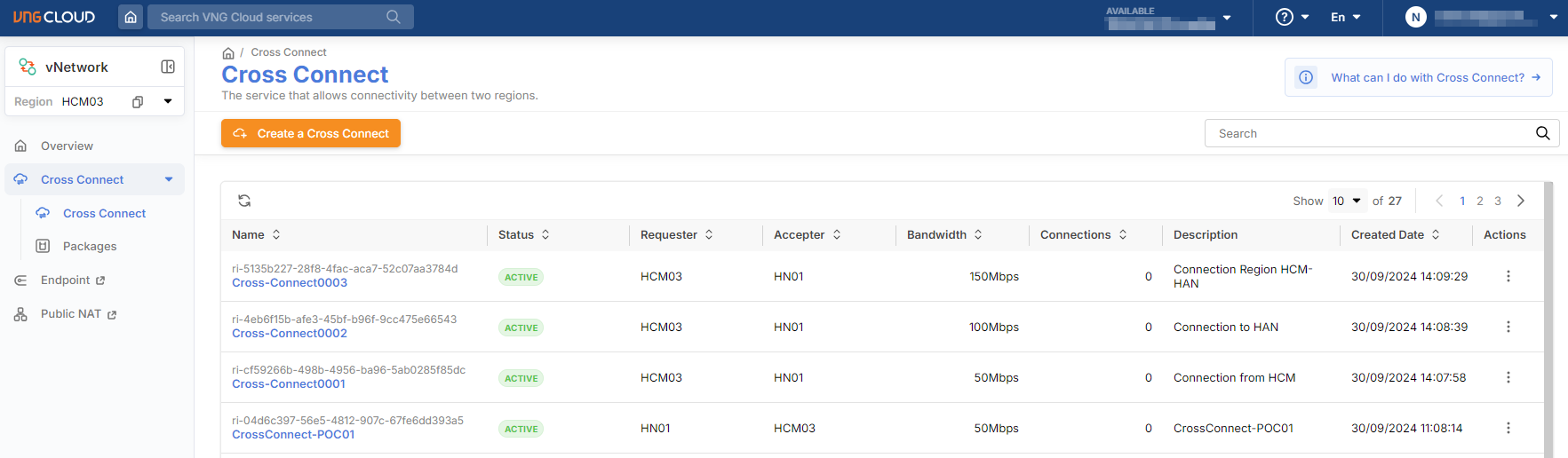
**Step 1:** Successfully log in to GreenNode, and on the Console screen, navigate to the vNetwork service;
**Step 2:** In the left-hand menu of the vNetwork interface, select the Cross Connect section;
**Step 3:** The screen will navigate to the Cross Connect List page;
**Step 4:** On the Cross Connect list screen, click '**Create a Cross Connect**';
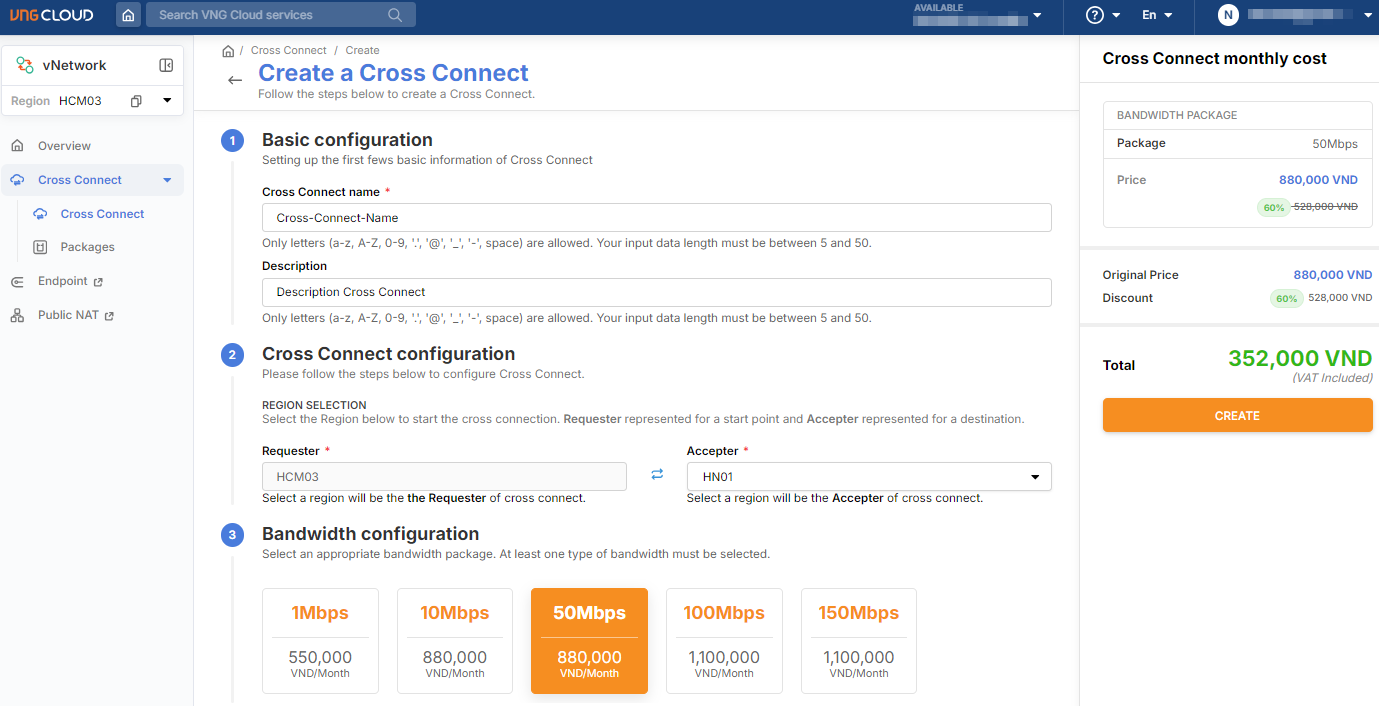
**Step 5:** On the 'Create a Cross Connect' screen, fill in the setup information as follows:
* **Cross Connect Name:** Enter the name of the Cross Connect being created;
* Description: (optional) Enter a description for the Cross Connect being created;
* **Cross Connect Configuration**: Select the Requester (default according to the configured region) and Accepter as the two regions that need to communicate with each other;
* **Bandwidth Configuration**: Select the appropriate bandwidth package according to your needs.
**Step 6:** On the right side of the screen, review the package summary and bandwidth costs to create the Cross Connect, then click '**Create**' to confirm and proceed with payment;
**Step 7:** After successful payment, the system will process the connection for the newly created Cross Connect.
{% hint style="success" %}
**Note:**
* On the Cross Connect list screen, you can see the newly created Cross Connect with the status '**Provisioning**' (which means the system is establishing the connection).
* During the setup process for this Cross Connect, the system requires time to authenticate between the two regions, so it **may take up to 20 minutes to complete**. Once the system finishes processing, the status will automatically change to '**Active**.'
* At this point, the user can proceed to [create a VPC connection](/vnetwork/cross-connect/create-a-vpc-connection.md) between the two regions.
{% endhint %}