> For the complete documentation index, see [llms.txt](https://docs.greennode.ai/llms.txt). Markdown versions of documentation pages are available by appending `.md` to page URLs; this page is available as [Markdown](https://docs.greennode.ai/vcdn/security-vcdn/certificate-management.md).
# Certificate Management
## Overview
**The Certificate Management** feature on the vCDN service allows customers **to upload SSL Certificates and SSL Keys** , including **the CA (Certificate Authority) key chain** . This helps establish a secure HTTPS connection for CDN resources and ensures that all data transmitted over the network is encrypted and protected.
***
## **Detail**
* **Private Key** : private key file corresponding to SSL certificate. This is the certificate's security key, only your server has the right to use it.
* **SSL Certificate** : your SSL certificate file. This is a certificate issued by a Certificate Authority (CA), confirming that the connection between the user and the server is secure.
* **CA Root Chain** : If your certificate requires **a CA Chain** (which includes intermediate certificates between the SSL certificate and the root CA), you need to upload these intermediate certificates as a chain.
## Steps to follow
**Step 1:** Access vCDN Portal at [https://vcdn.vngcloud.vn](https://vcdn.vngcloud.vn/live-entrypoint/list.html)
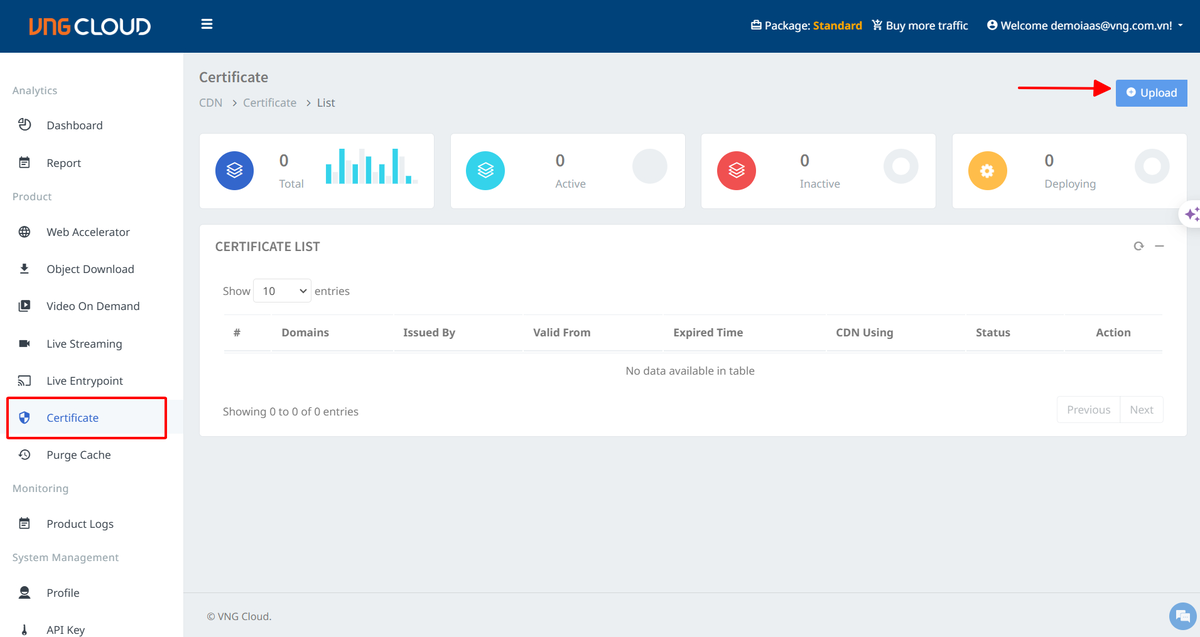
**Step 2:** Select **Certificate** , then select **Upload.**
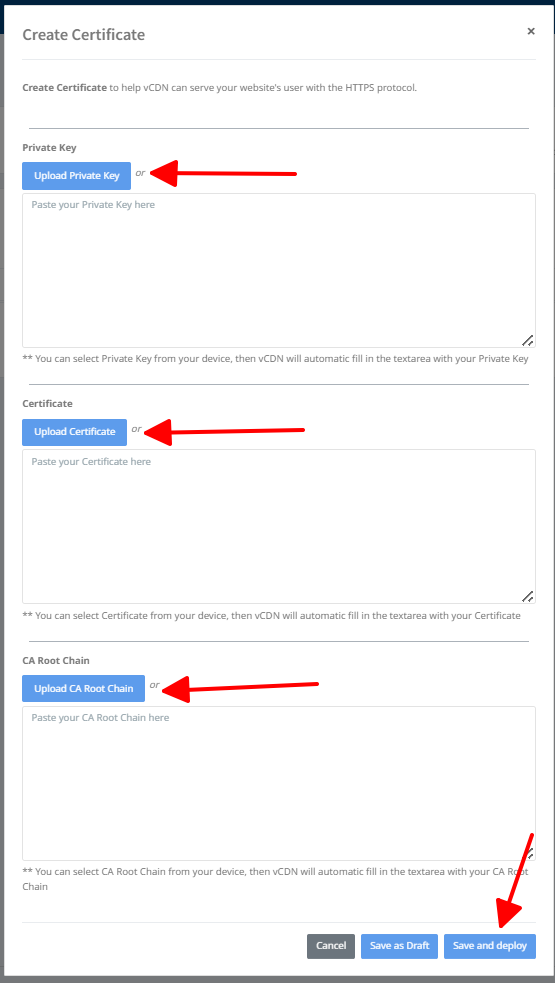
**Step 3:** Click the **Upload Private Key** button to upload the Certificate's private key, or you can also paste the private key into the box below.
**Step 4:** Click the Upload Certificate button to upload the Certificate's CRT/PEM file or you can also paste the CRT/PEM information into the box below.
**Step 5:** Click the Upload CA Root Chain button to upload the certificate information of the certificate provider. You can leave it blank if there is no information. *Some older browser versions may report an invalid Certificate error if the CA Root Chain information is missing.*
**Step 6:** After entering/uploading all the information, select **Save and Deploy** to save and activate the certificate, ready for CDNs to use.
If the certificate is not ready to use immediately, select **Save as Draft** to save it.
{% hint style="info" %}
**Attention:**
* vCDN provided by GreenNode is a content delivery service via HTTP protocol with TLS/SSL (HTTPS) support. Therefore, TLS Certificates - uploaded by customers for the purpose of encrypting the HTTP channel between users and the CDN server system - are simultaneously stored and managed by customers and GreenNode until customers perform a deletion command via the Web Portal/API interface.
* GreenNode commits not to share these TLS Certificates with any third party.
{% endhint %}