> For the complete documentation index, see [llms.txt](https://docs.greennode.ai/llms.txt). Markdown versions of documentation pages are available by appending `.md` to page URLs; this page is available as [Markdown](https://docs.greennode.ai/vcdn/loai-hinh-dich-vu/transcoding-and-advanced-features/use-cases/live-transcode-combines-recordings-for-later-vod-playback.md).
# Live Transcode combines recordings for later VOD playback
To create a Live Transcode channel that combines a recording for later VOD playback, follow these instructions:
## Install Sigma Media Server
First, you need to install Sigma Media Server following the steps [here](https://docs-vngcloud-vn.translate.goog/vng-cloud-document/vn/vcdn/loai-hinh-dich-vu/transcoding/cai-dat-sigma-media-server) .
## Initialize and configure Media Service for livestreaming.
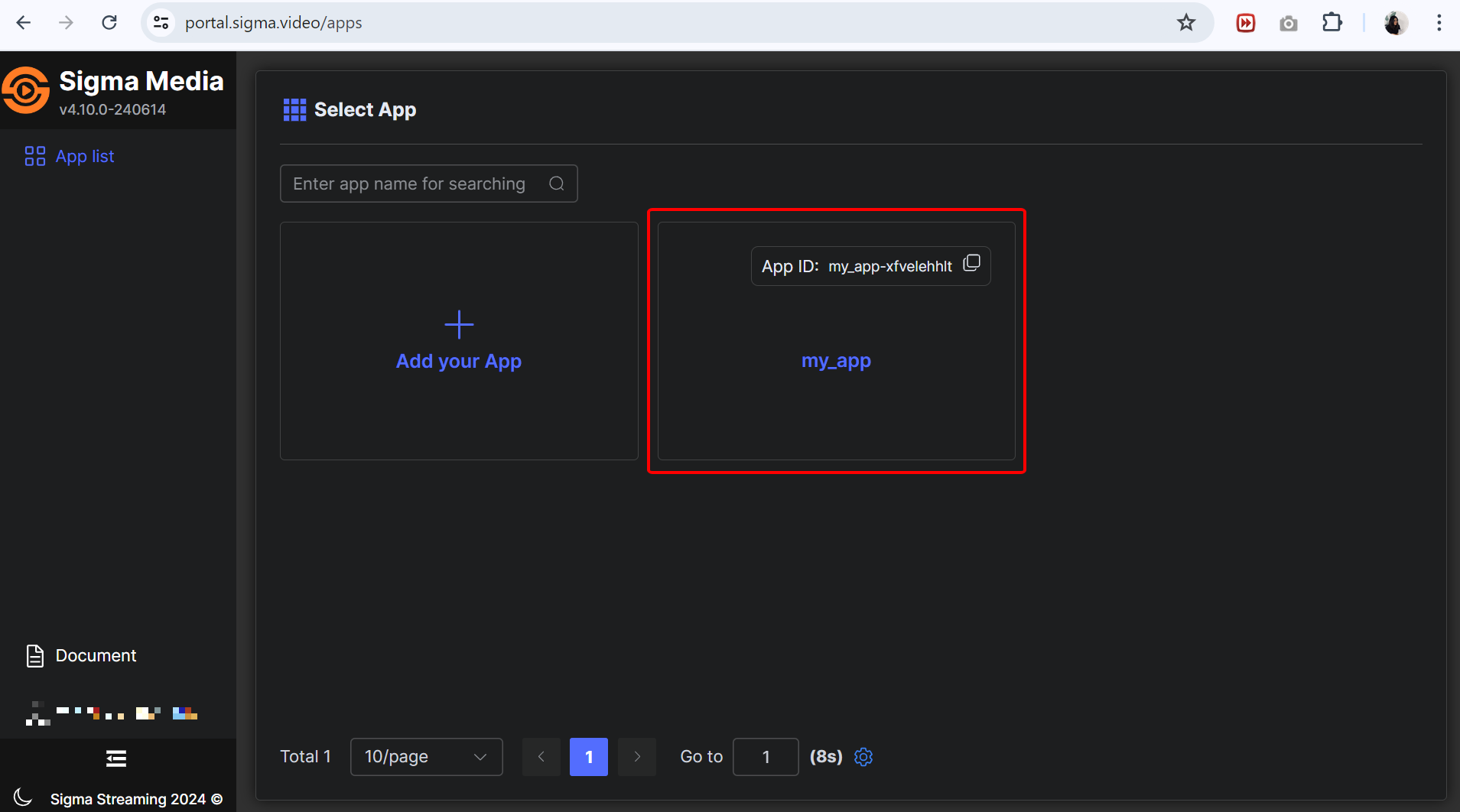
**Step 1:** After successfully installing **Sigma Media Server** , access with the email you previously registered to use the service.
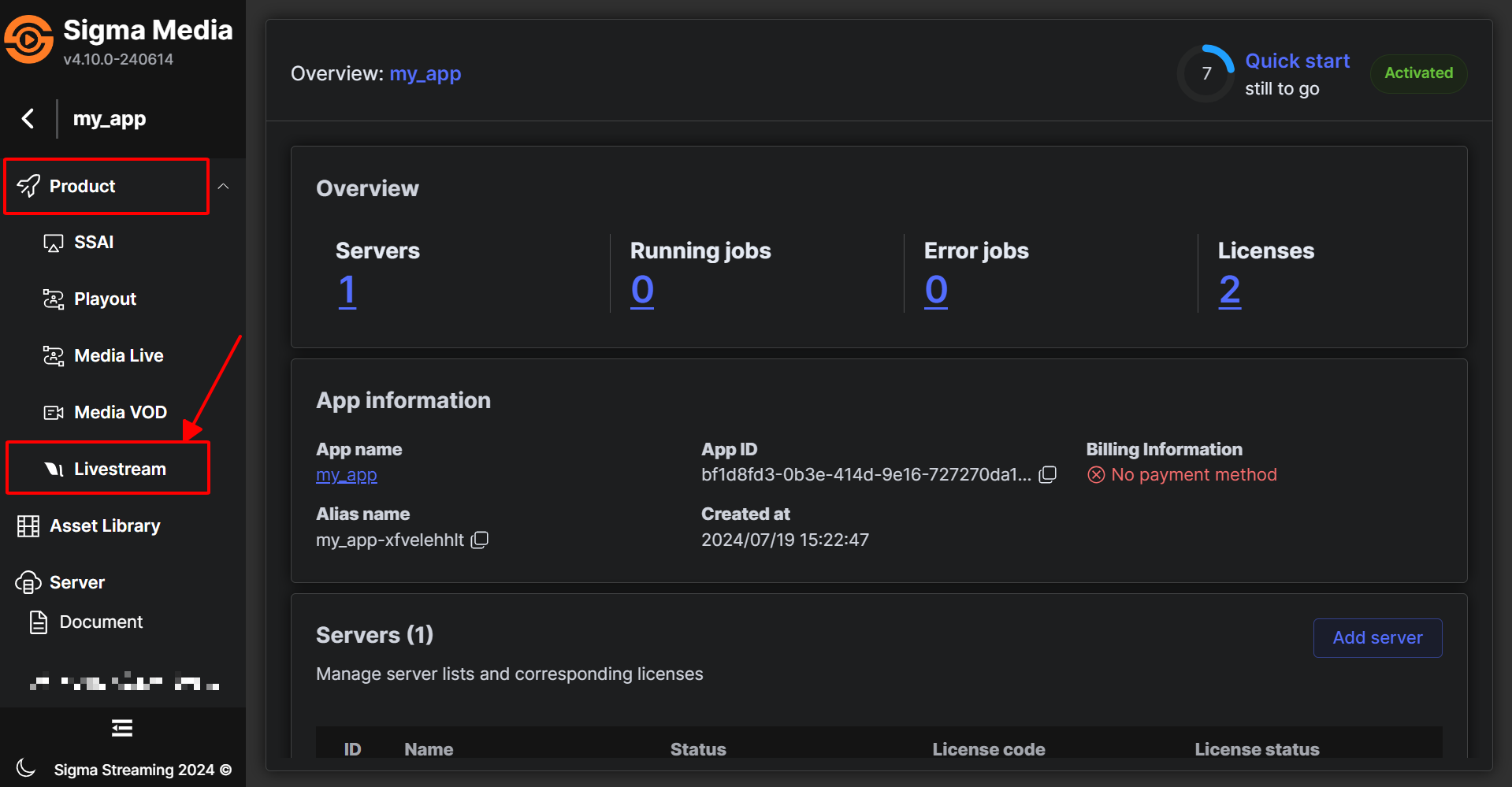
**Step 2:** Select the **Product** drop-down menu and select **Livestream**
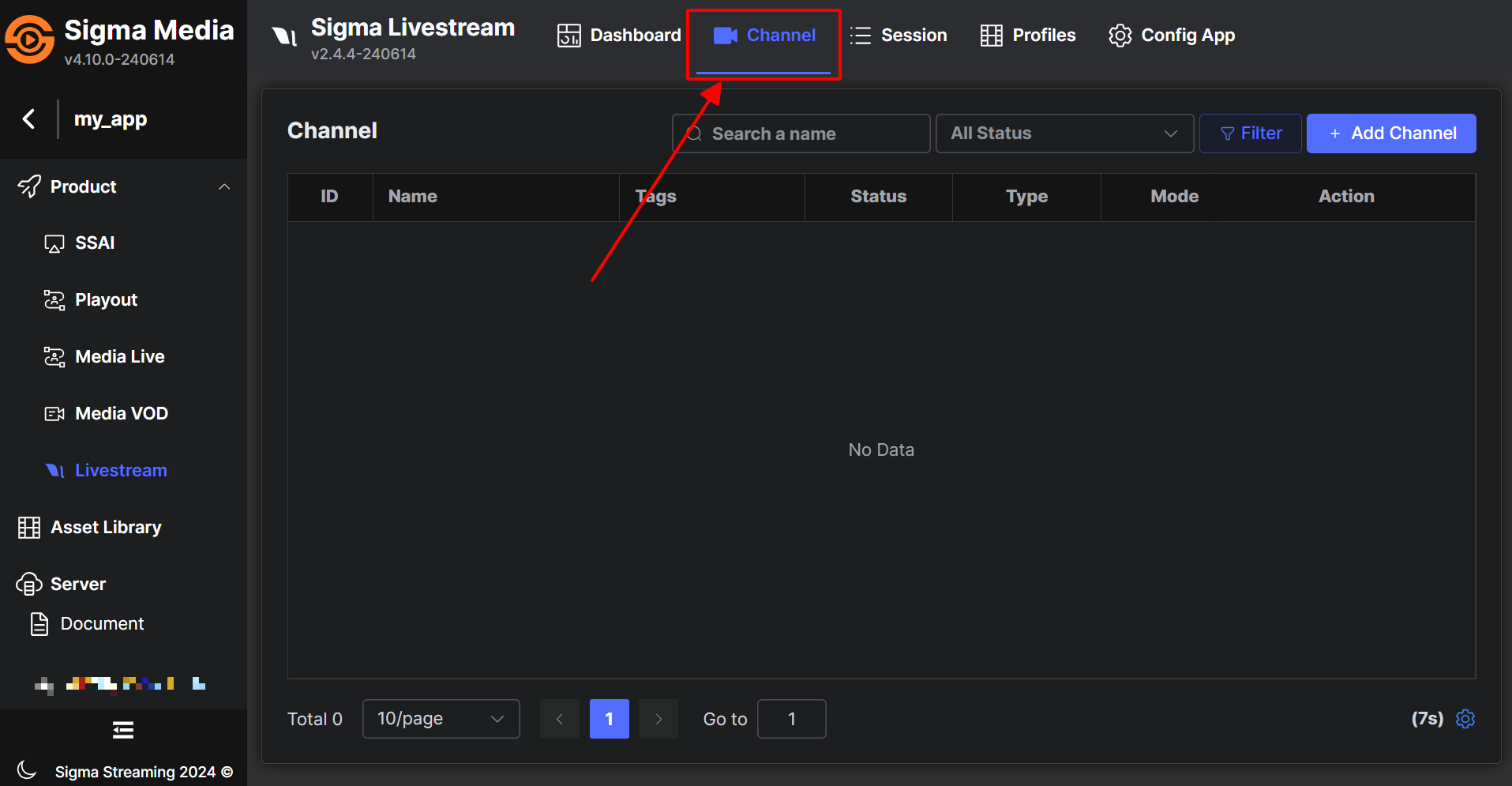
**Step 3:** Continue to select **the Channel tab**
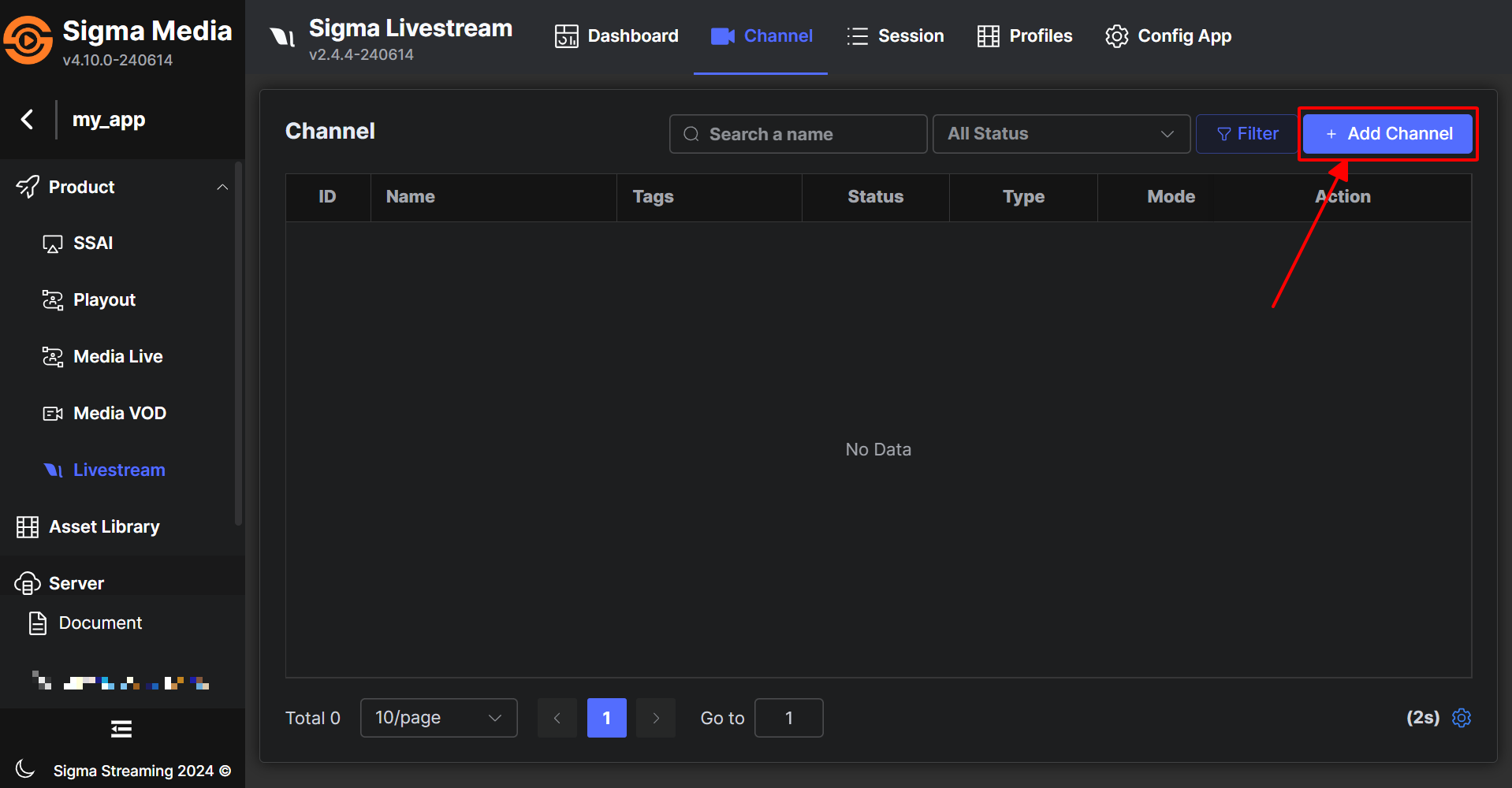
**Step 4:** Select the **Add channel** button in the right corner
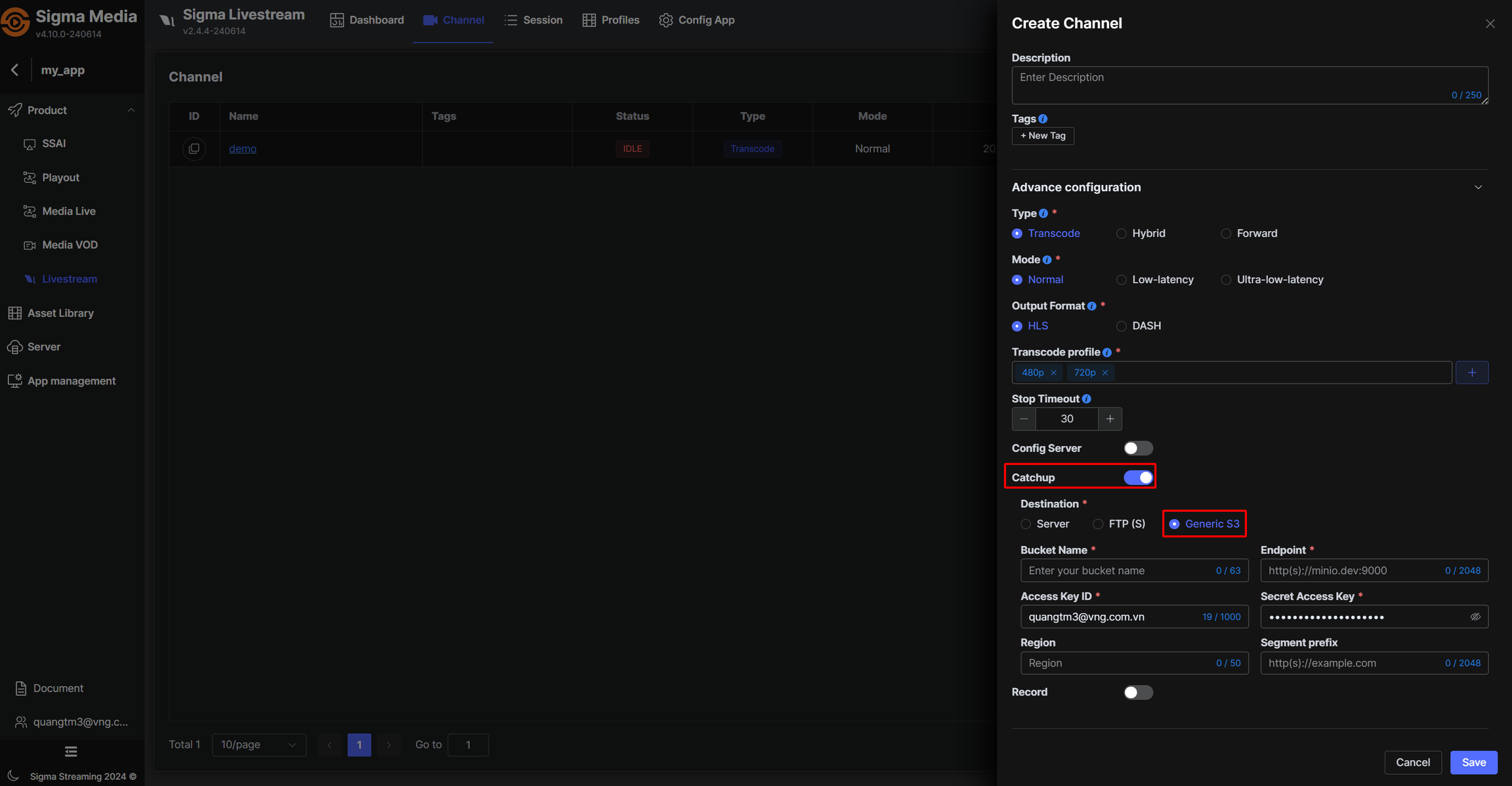
**Step 5: The Create Channel** screen appears, you configure the channel parameters, select the processing server in the **Advance configuration** section .
**Note: to record Livestream as VOD for later playback, you need to enable Catchup as shown below and enter information about where to store VOD.**
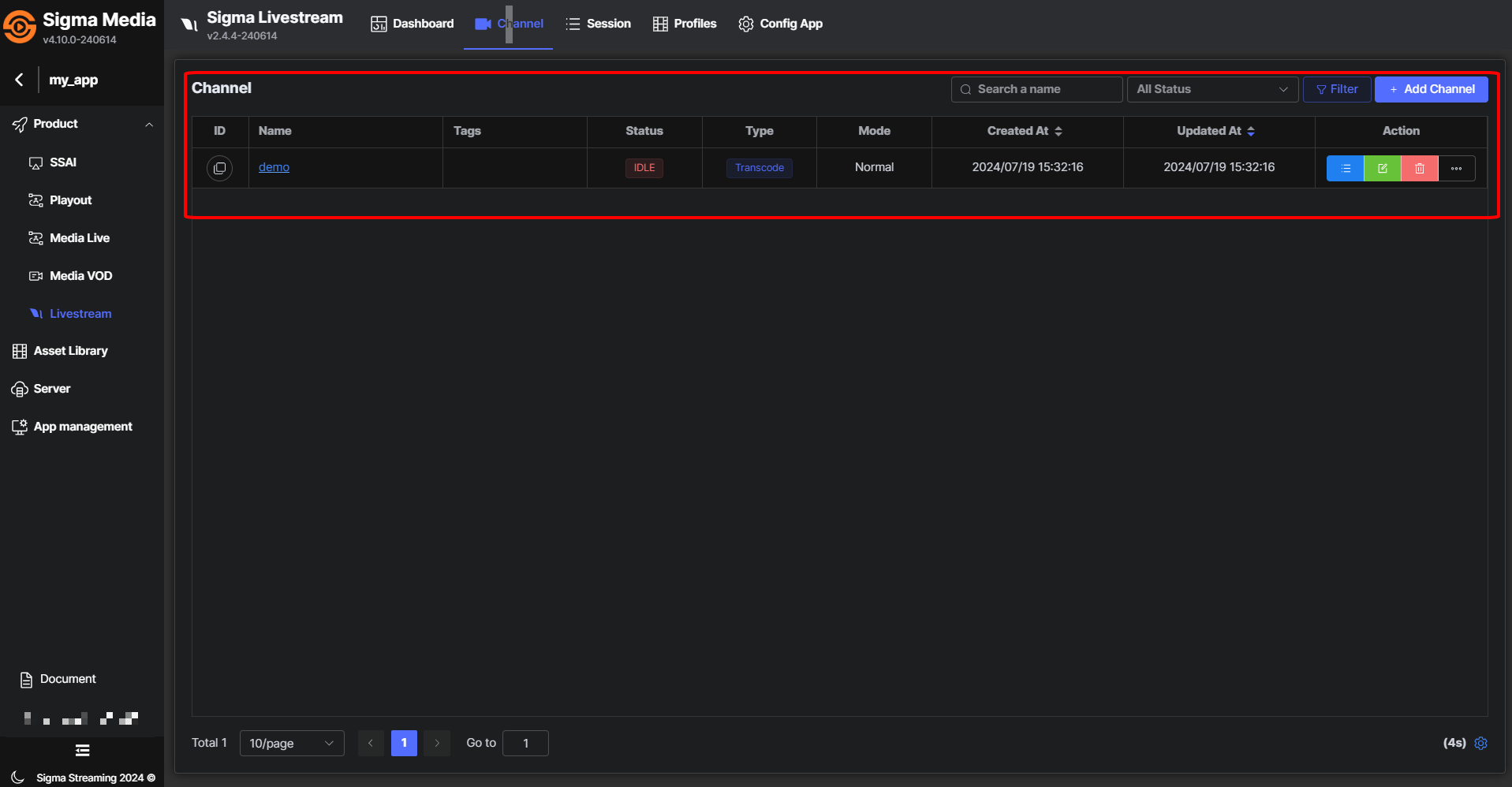
**Step 6:** Return to the **Channel** list screen and we will see the newly created channel in the list. Click on the channel name to go to the channel detail screen.
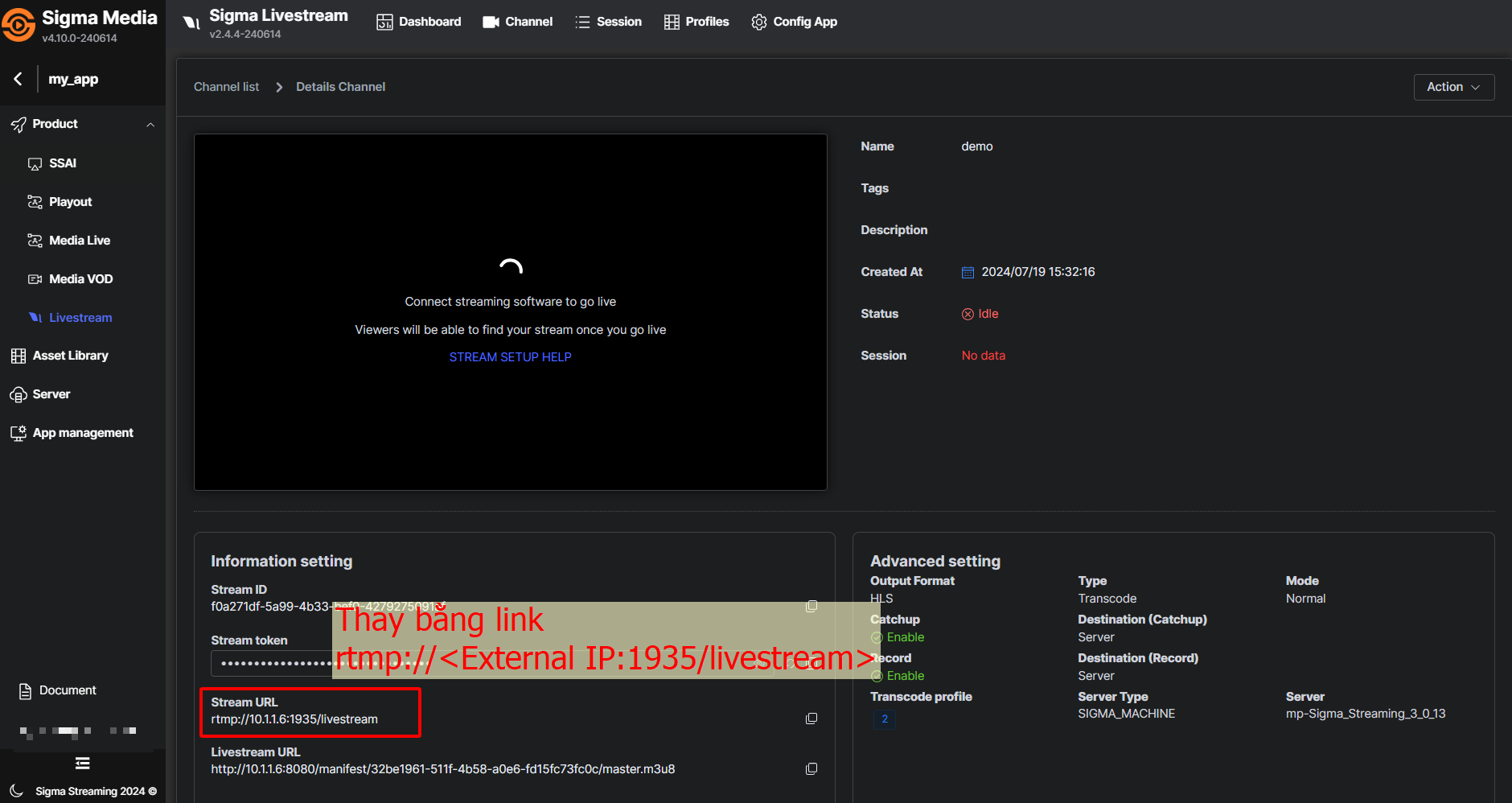
**Step 7:** In the channel detail screen, we will see the RTMP Stream URL information. Replace **the Stream URL** on the screen with ***rtmp\://\:1935/livestream*** to stream.
## Initialize and configure the vCDN service.
**Step 1:** You access [GreenNode – ](https://vcdn.vngcloud.vn/)[vCDN ](https://vcdn.vngcloud.vn/)[Portal](https://vcdn.vngcloud.vn/)
**Step 2:** Create a CDN domain for **Live Streaming** following the instructions [here](https://docs-vngcloud-vn.translate.goog/vng-cloud-document/vn/vcdn/loai-hinh-dich-vu/live-streaming) .
**Step 3** : Point the CDN **Origin to the Sigma server** that is processing the livestream.