> For the complete documentation index, see [llms.txt](https://docs.greennode.ai/llms.txt). Markdown versions of documentation pages are available by appending `.md` to page URLs; this page is available as [Markdown](https://docs.greennode.ai/vcdn/bao-cao.md).
# Report
## Overview****
**In addition to Dashboard, vCDN System is providing Report** feature , allowing customers to track and analyze their CDN usage history. Reports are updated with data frequency **up to day N-1** (current day is N).
## Detail
Statistical information in the report includes:
* **Key information:**
* **CDN** : Includes customer-owned resources such as Web Accelerator, Object Download, Video on Demand (VoD), Live Stream, and Live Entrypoint.
* **Group Type** : Classify the service package the customer is using (Basic, Standard, Pro, Enterprise).
* **Traffic Type** : Distinguish transmission traffic, including:
* **Domestic** : Domestic traffic.
* **International** : International traffic.
* **Detailed data:**
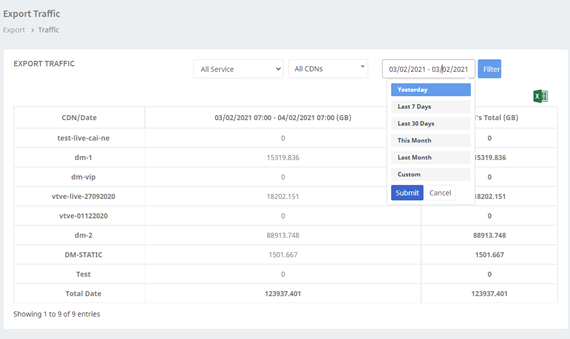
* **Daily Traffic** : Traffic is counted from **07:00 day N-2 to 07:00 day N-1** .
* **Total CDN's Traffic** : Total traffic through all of the customer's CDN resources during the filter period.
* **Multi-day options:**
* Customers can use filters to view reports for one or more past days as desired.
## **Steps to follow**
**Step 1:** Access vCDN Portal at [https://vcdn.vngcloud.vn](https://vcdn.vngcloud.vn/live-entrypoint/list.html)
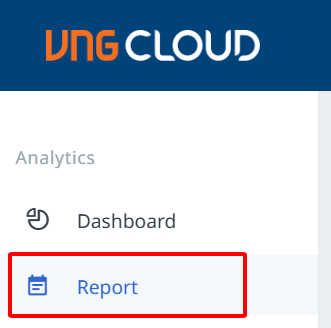
**Step 2:** Select **Report** to view the report. The data includes statistical information as stated in the details section.
**Step 3:** You can **filter according to the conditions:**
* **Service** : Service type.
* **CDN** : Select specific resource.
* **Traffic Type** : Domestic or International.
* **Group** : Service package.
* **Timeframe:** Select the reporting period.
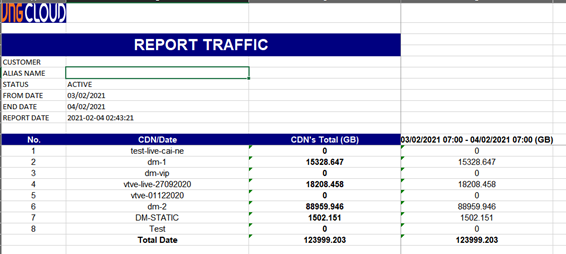
**Step 4: Click on the Excel** icon to export the report to an Excel file for storage or further analysis.