> For the complete documentation index, see [llms.txt](https://docs.greennode.ai/llms.txt). Markdown versions of documentation pages are available by appending `.md` to page URLs; this page is available as [Markdown](https://docs.greennode.ai/billing-management/vconsole-management-channel-for-billing-and-resources/getting-started/other-features/match-end-time.md).
# Match End Time
With the Match end time feature, you can manage all your services easily and efficiently, without worrying about forgetting to renew. With just a few clicks, you can set the expiration date for all your accounts, saving time and effort.
**Steps:**
1. **Log in to your account:**
* Go to the vConsole page at: .
* Follow this guide to log in to your GreenNode account here.
2. **Go to the resource management page:**
* Find and select "Resource statistics", or go to the following link: .
* You will see a list of resources currently in use across all services.
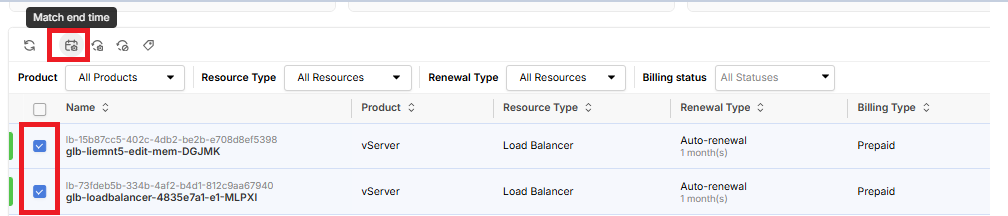
3. **Select the resources to adjust:**
* **Step 1: Find the resources to adjust**
* Filter by Product and the Resource Type belonging to that product
* Filter by Renewal Type:
* Manual: Resources without auto renewal enabled
* Auto-Renewal: Resources with auto renewal enabled
* Filter by Billing Status
* Good: Resources with more than 15 days remaining
* Warning: Resources with 5 to 15 days remaining
* Alerted: Resources with less than 5 days remaining
* Expired: Expired resources pending deletion
* **Step 2: Check the box next to the name of each resource you want to adjust.**
* Alternatively, you can select "Select all" to adjust all resources.
* **Step 3: Select the Match end time action**
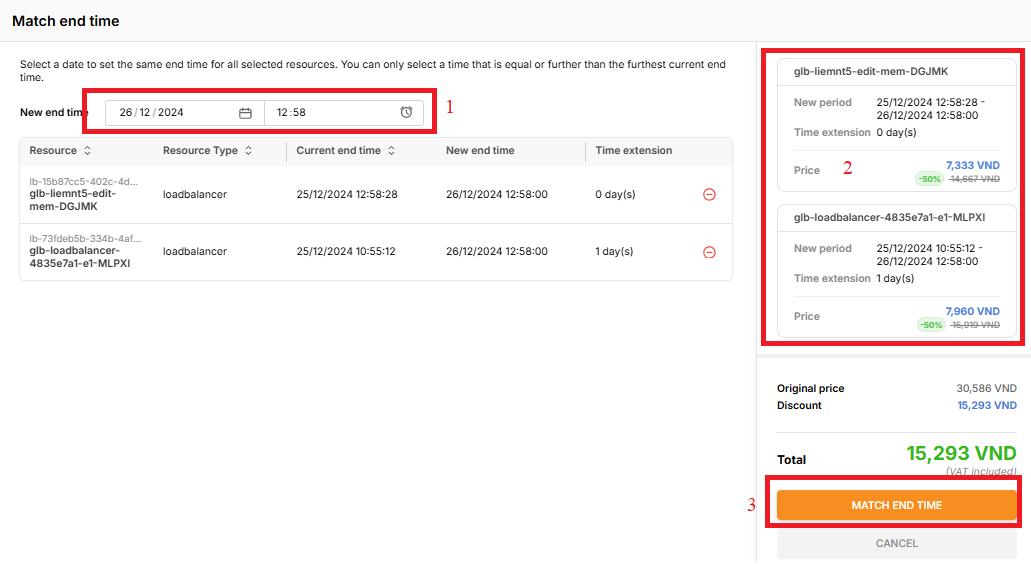
4. **Set the new end date:**
* Step 1: Select the new expiration date and time to apply to the resources
* Step 2: Review the additional cost for each resource, corresponding to the extended period
* Step 3: Click Match end time to confirm the renewal
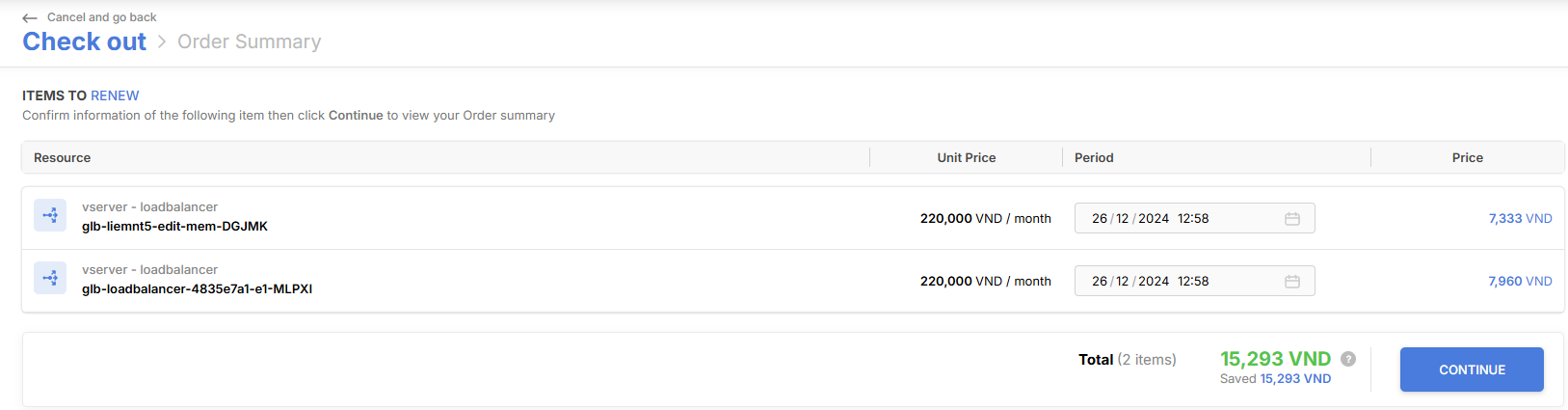
5. **Complete the payment on the payment page to finish the process:**
**Note:**
* **Resource types:** This feature applies to the following resources: Resources with Billing = Prepaid
* **Additional costs:** Adjusting the end date incurs additional costs, similar to renewing a resource