> For the complete documentation index, see [llms.txt](https://docs.greennode.ai/llms.txt). Markdown versions of documentation pages are available by appending `.md` to page URLs; this page is available as [Markdown](https://docs.greennode.ai/billing-management/experience-with-billing-and-payment/resource-lifecycle-management/auto-renew-resources-policy-and-terms.md).
# Auto-renew resources - policy & terms
Use this document to learn more about the auto-renewal feature. It will detail the steps involved in **auto-renewing resources and the costs associated** with auto-renewing resources. Other steps are simplified and only mentioned as part of the process.
**1. The automatic resource renewal policy only applies to:**
* **Target:** Prepaid users
* **Resources** : All resources that support auto-renewal and are currently in use
* **Funding source** : GreenNode Credit
**2. Instructions to enable/disable the "Automatic renewal" feature**
**2.1 For vStorage service products:** [**https://docs.vngcloud.vn/vng-cloud-document/vstorage/object-storage/cach-tinh-phi**](https://docs.vngcloud.vn/vng-cloud-document/vstorage/object-storage/cach-tinh-phi)
**2.2 For vServer products and services**
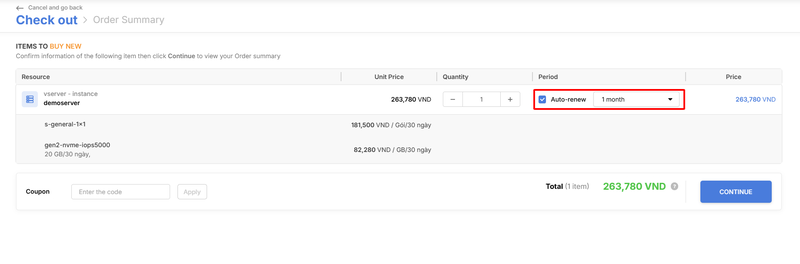
* **Enable "Auto-Renew" on initialization**
* Step 1: Configure service information on the product page → Click " **Initialize** " to go to the payment page
* Step 2: On the payment page, tick " **Auto-renew** " to enable auto-renewal feature
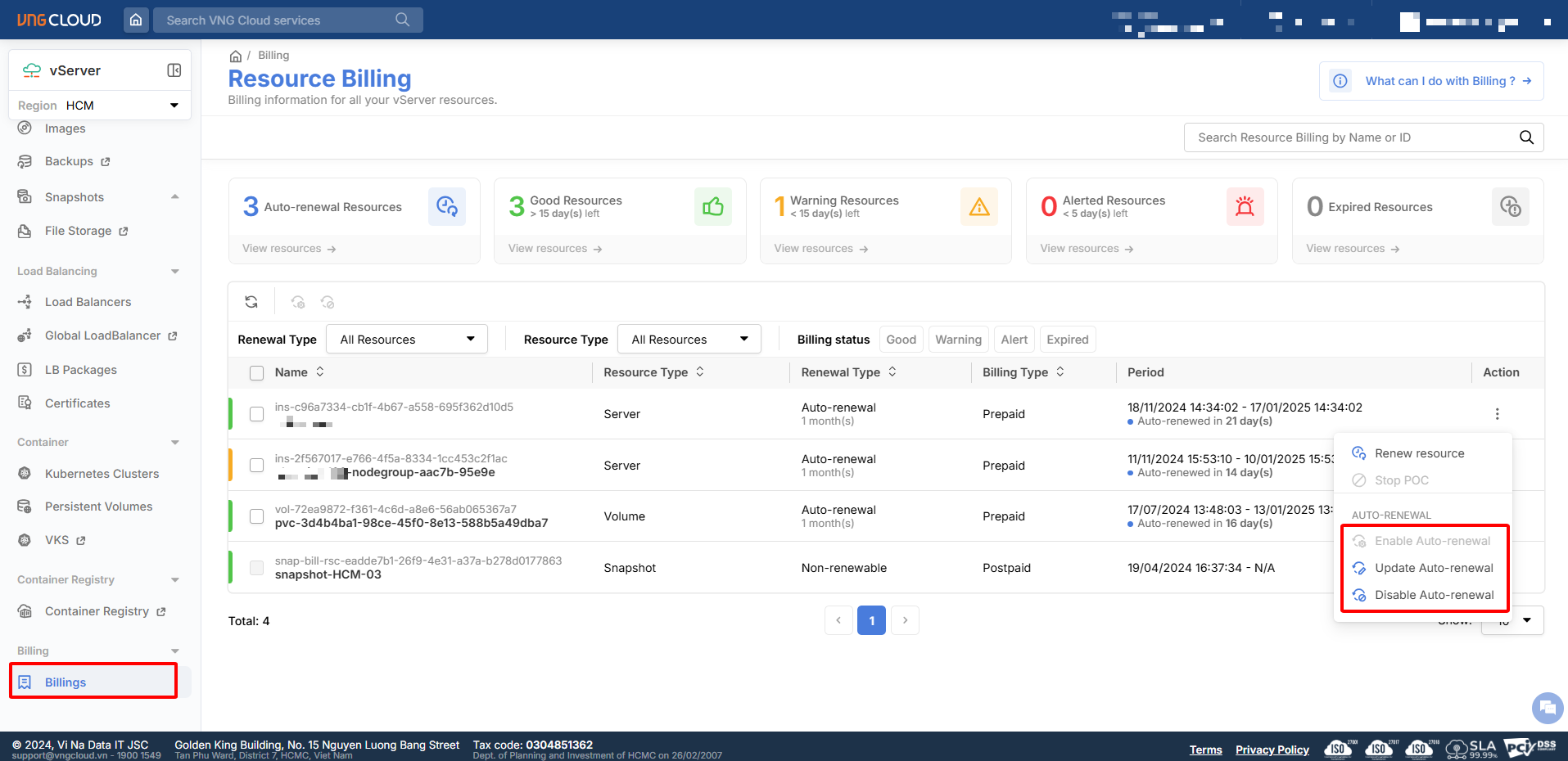
* **Turn on/off during service use**
* Step 1: Navigate to the Resource Billing page in the vServer service:
* Step 2: Click on the three dots icon at the location of the resource that needs to be changed. See image below
* Select **"Auto-Renew"** to enable auto-renew if not enabled at creation
* Select **"Update auto-renewal"** to adjust the resource usage time applied when the system performs auto-renewal
* Select **"Turn off auto-renewal"** to turn off auto-renewal if not needed.
**2.3 For vMonitor products and services**
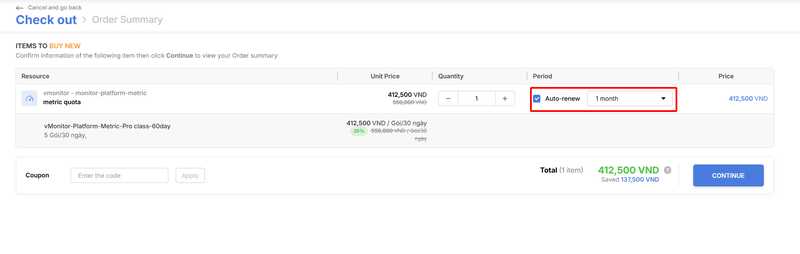
* **Enable "Auto-Renew" on initialization**
* Step 1: Configure service information on the product page → Click "Initialize" to go to the payment page
* Step 2: On the payment page, tick "Auto-renew" to enable auto-renewal
*Note: Currently, services in vMonitor products do not support turning off automatic renewal when users turn it on at initialization. To turn off automatic renewal when not needed, please contact the 247 team for further support.*
**3. Automatic resource renewal process**
Automatic resource renewal is **a system feature** that helps users' resource usage not be interrupted at the end of the resource period (users need to continue using it but forget to renew it on the system for some reason).
**Terms applicable to the "Auto-renewal" feature on GreenNode:**
* Starting **7 days before the expiry date**, the system sends renewal reminder emails so that users can prepare enough available Credit balance. Top up enough Credit before 8:30 AM on the renewal date.
* Resources are **renewed for 1 month by default**, starting from the end date.
* On each of the following dates, **7 days, 4 days and 1 day before the expiry date, and on the expiry date**, the system starts running auto-renewal at **8:30 AM**. Resources are processed one after another, so the time renewal completes may differ between resources. If a renewal attempt fails due to insufficient Credit, the system tries again at the next date.
* Auto-renewal is priced the same as a renewal performed by the user. See Renew resource.
* The system notifies the user whether the renewal succeeded or failed.
* The system generates an invoice for the renewed period.
* **Note:** Auto-renewal only applies to resources of products that support auto-renewal, that the customer has turned auto-renewal on for, and that are Active. Resources that have expired or been deleted before these dates are not auto-renewed.
* **Note on expiry time:** At each auto-renewal run, if the resource's expiry time has already passed before the system processes the renewal, the resource no longer qualifies for auto-renewal. For example, a resource expires at 7:00 AM on the expiry date, while that day's run starts at 8:30 AM. In this case, you need to renew the resource manually in the console.
* If all 4 renewal attempts fail, auto-renewal stops and the resource expires. To continue using it, the user needs to renew the resource before it is permanently deleted. See Renew expiring resources.